How to use the on-screen spelling keyboard
Type your answers on the Learn screen's own keyboard, including letters with accents.
Before you start
- You're on the Learn screen during a practice round — see How to start and complete a practice round.
Steps
- Tap letters to spell the word you heard. The keyboard is laid out like a standard English keyboard, with the letters A to Z, an apostrophe, a hyphen and a SPACE key. There are no capital letters: the app doesn't distinguish between upper and lower case.
- To remove the last letter you typed, tap ⌫, at the right of the third row.
- When you type the letter that completes the word, the app checks your answer straight away. There's no Enter or submit key.
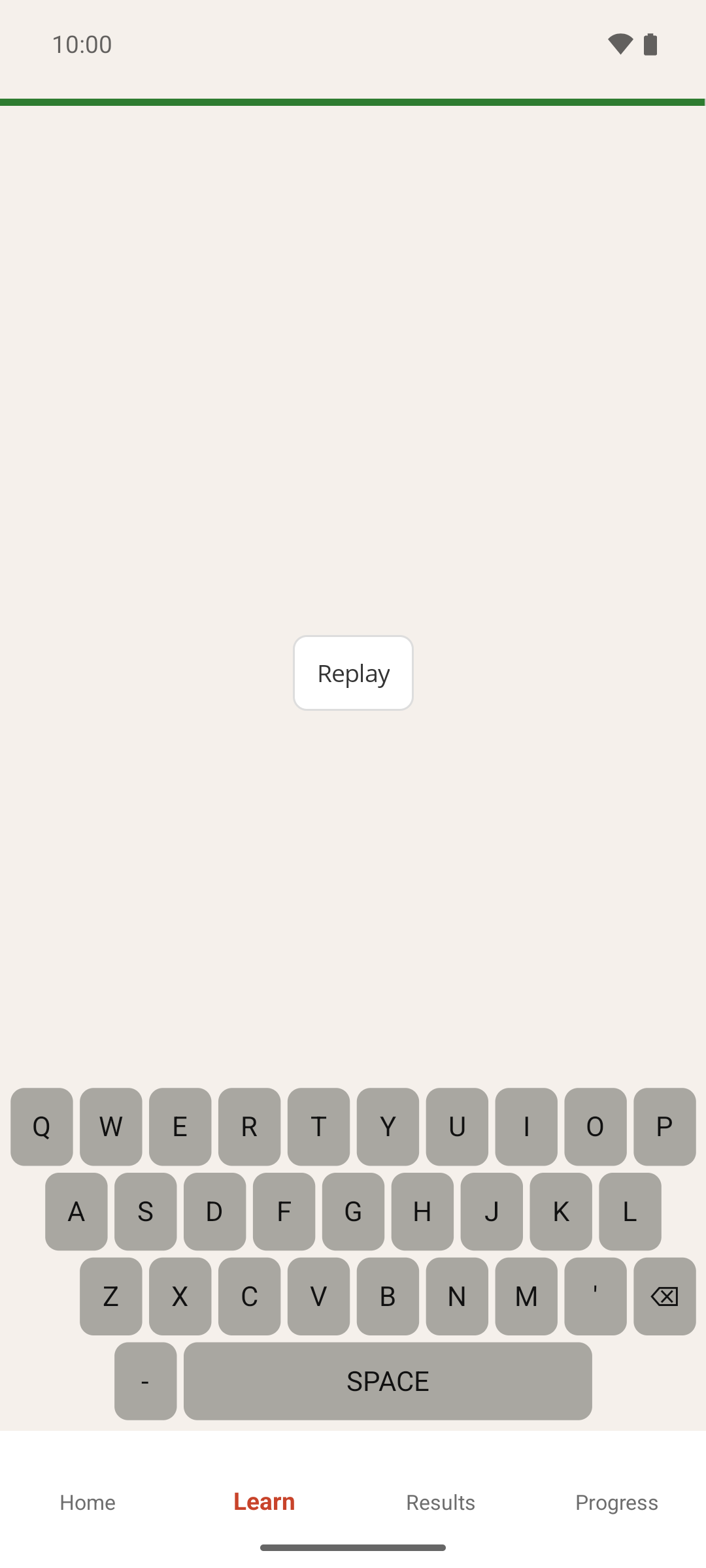
Type an accented letter
- Press and hold a letter that has accented versions: a, c, d, e, i, l, n, o, r, s, t, u, y or z.
- After a moment, a row of accented options appears above the keyboard.
- Lift your finger, then tap the accent you want.
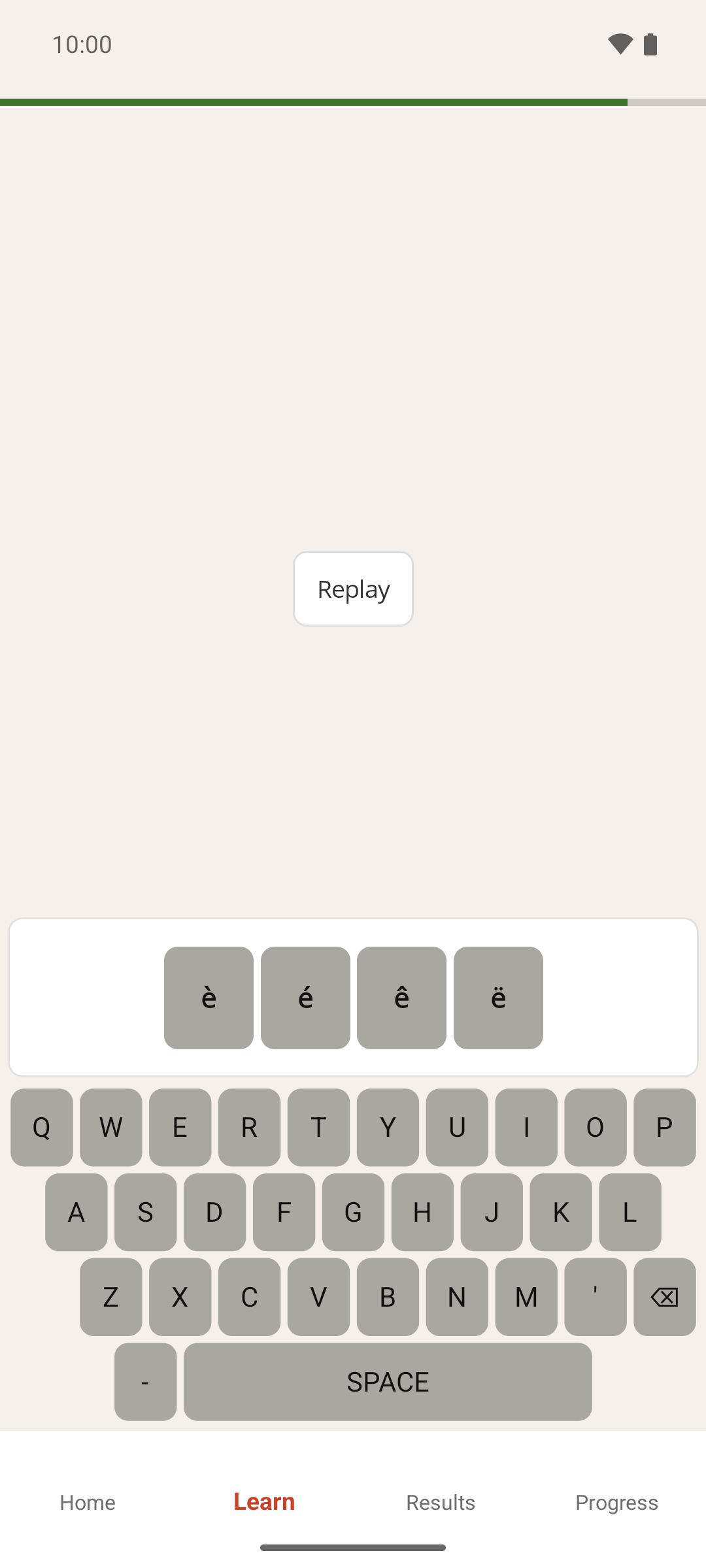
To close the accent row without choosing anything, tap anywhere else on the keyboard.
Result
Your answer builds up in the middle of the screen as you type, letter by letter, and is checked automatically once it's complete.
If something goes wrong
- The keyboard doesn't respond. It's paused while the app is speaking a word, including during Replay, and while the green or red feedback for the previous word is showing.
- I tapped the wrong letter but the right one appeared. A key next to the correct one is sometimes accepted as if you'd hit the correct one. See Why a mistyped letter can still count as correct.
- A word needs an accent but I typed the plain letter. Accented letters must be typed with the accent, using the steps above. Typing "e" for "é" counts as a wrong letter.