How to turn on a built-in word group
Switch on one of MemoLeap Spelling's ready-made word groups without typing any words yourself.
Before you start
- You have the MemoLeap Spelling app open.
Steps
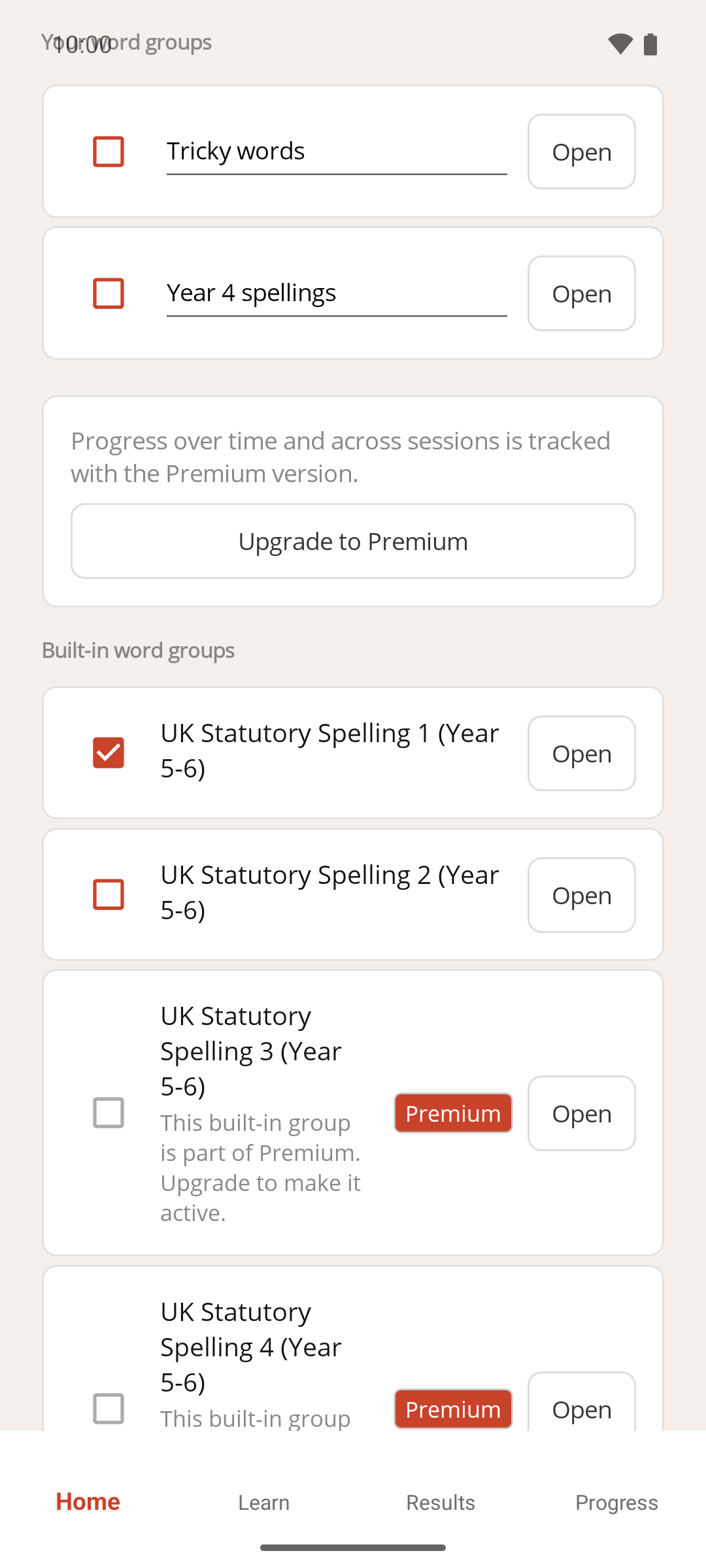
- On the Home screen, tap Define Words.
- Scroll down to Built-in word groups.
- Tap the checkbox next to the group you want to use.
Result
The group is switched on and its words are included the next time you tap Start learning. Built-in groups always have enough words to count as active, so there's no "needs more words" step.
You can tap Open on a built-in group to see its words and hear how each one is pronounced, or to record your own pronunciation — see How to record a custom pronunciation for a word. You can't add, change or delete the words themselves, because built-in word lists are fixed.
Note
On a new installation, the first free built-in word group is already switched on for you. That's why Start learning works before you've created anything.
If something goes wrong
- The checkbox is greyed out and the group shows a Premium badge. That group is part of Premium, as the text under its name says. See How to upgrade to Premium for where to find the Upgrade to Premium button. Once you have Premium, the checkbox becomes available.
- I switched on a Premium group, then lost Premium. The checkbox stays ticked, but the group's words aren't used in practice until Premium is restored — see How to restore your Premium purchase.