How to choose which word groups you practise
Switch word groups on or off to control which words come up during practice.
Before you start
- You have the MemoLeap Spelling app open.
- You have at least one word group of your own with 10 or more words in it, or a built-in word group you can use — see How to create a word group and How to turn on a built-in word group.
Steps
- On the Home screen, tap Define Words.
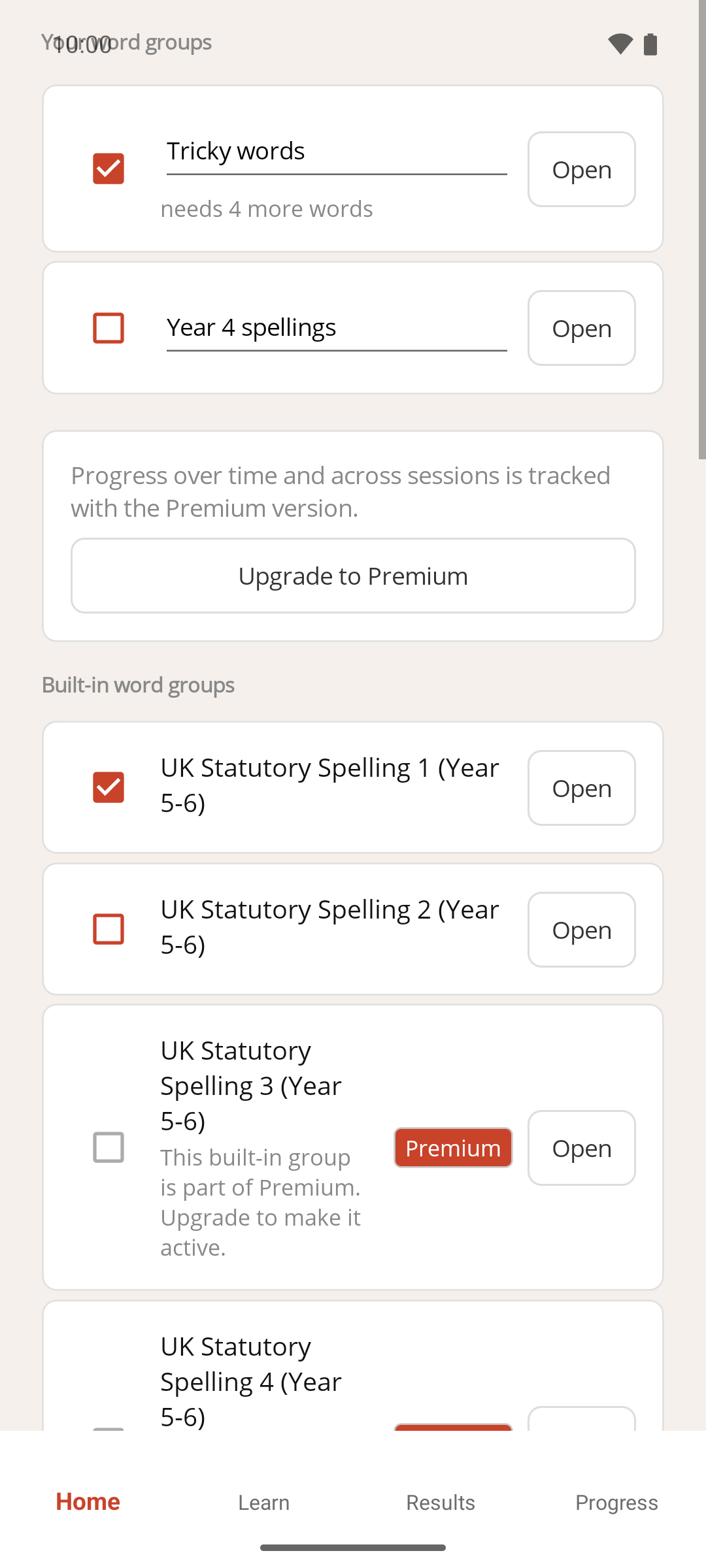
- Find the word group you want to change under Your word groups or Built-in word groups.
- Tap its checkbox to switch it on or off.
Result
The change is saved straight away. Only the word groups you've switched on are used when you tap Start learning. You can switch on as many as you like at once, and practice rounds draw words from every active group together.
If something goes wrong
- A group I switched on says "needs 3 more words" (or a similar number). A word group needs at least 10 words before it counts as active. Its checkbox stays ticked, but its words aren't used until you add enough words — see How to add and edit words in a word group.
- A built-in group's checkbox is greyed out and shows a Premium badge. That group is part of Premium — see How to turn on a built-in word group.
- Start learning is greyed out on Home. No word group is currently active. Switch at least one on here first. If you open the Learn tab instead, it shows a message asking for an active word group with 10 words, with a Define Words button that brings you back to this screen.