Get started with MemoLeap Spelling
Follow this tutorial to open MemoLeap Spelling for the first time, complete a practice round, read your results, and find out where your progress lives.
Before you start
- You have MemoLeap Spelling installed on your phone or tablet, with the sound turned up.
- Allow about ten minutes.
1. Open the app
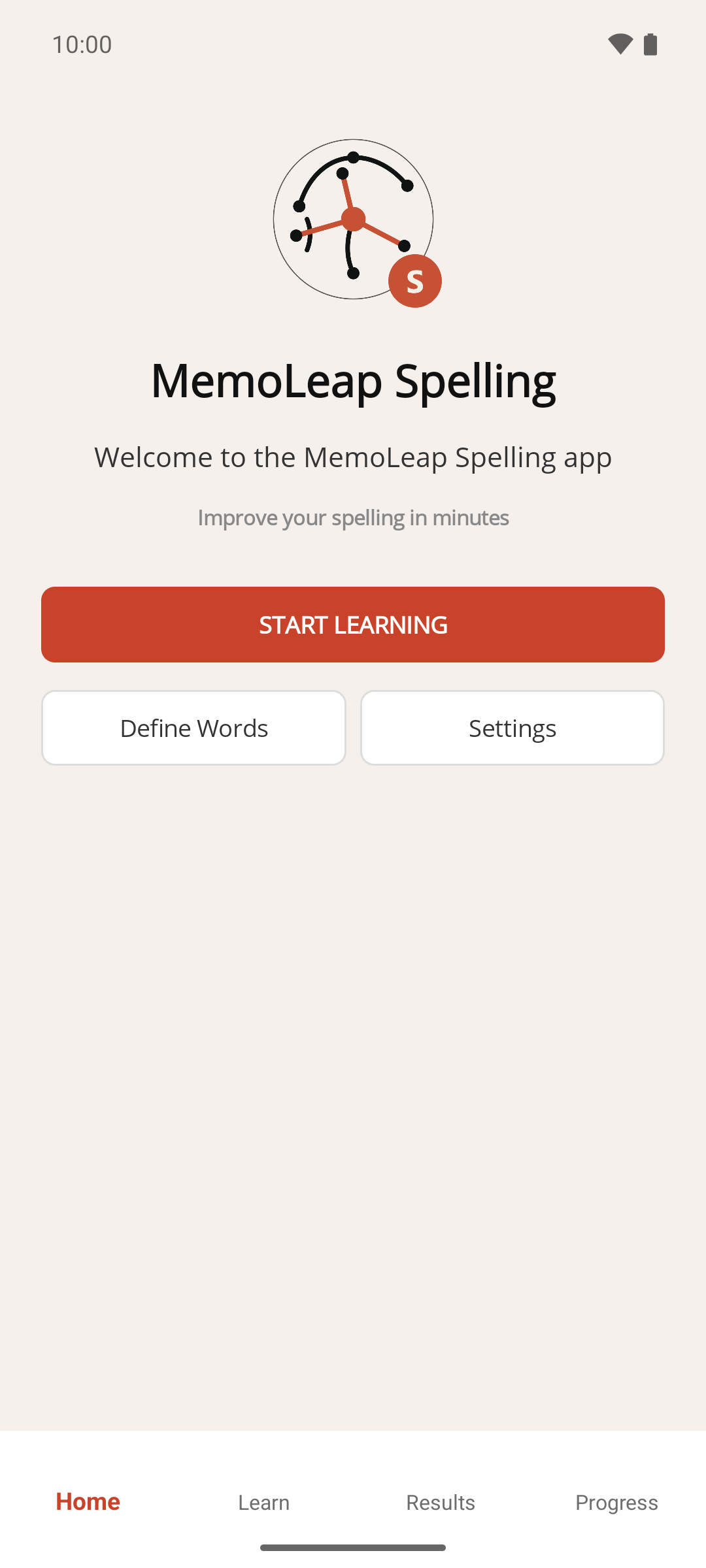
Open MemoLeap Spelling. The Home screen appears, with a large Start learning button and two smaller buttons, Define Words and Settings. Along the bottom of the screen are four tabs: Home, Learn, Results and Progress.
You don't need to set anything up first. One of the app's built-in word groups is already switched on, so Start learning is ready to tap.
2. Start your first practice round
- Tap Start learning.
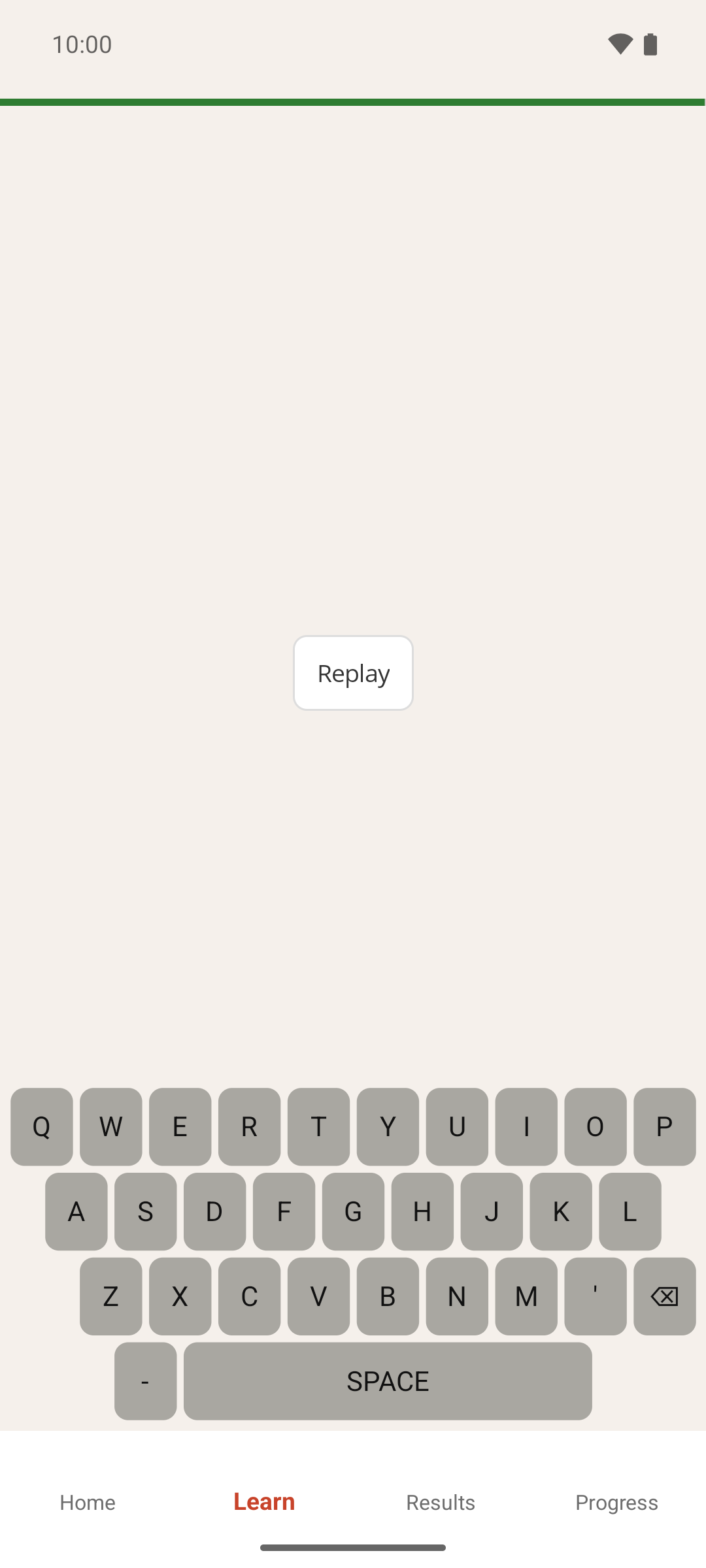
- Listen. The Learn screen opens and the app speaks the first word aloud straight away.
While the word is being spoken, the keyboard at the bottom of the screen doesn't respond. Once the word finishes, a bar across the top of the screen shows your time for this word. It stays full for a couple of seconds, then starts to shrink. Above the keyboard is a Replay button.
3. Answer your first word
- If you're not sure what you heard, tap Replay to hear the word again. You can do this as often as you like, but the bar keeps shrinking while it plays.
- Tap the letters on the keyboard to spell the word. Your answer builds up in the middle of the screen as you type.
- If you tap the wrong letter, tap ⌫ to remove it before you carry on.
There's no Enter key. The app checks your answer as soon as you type the last letter.
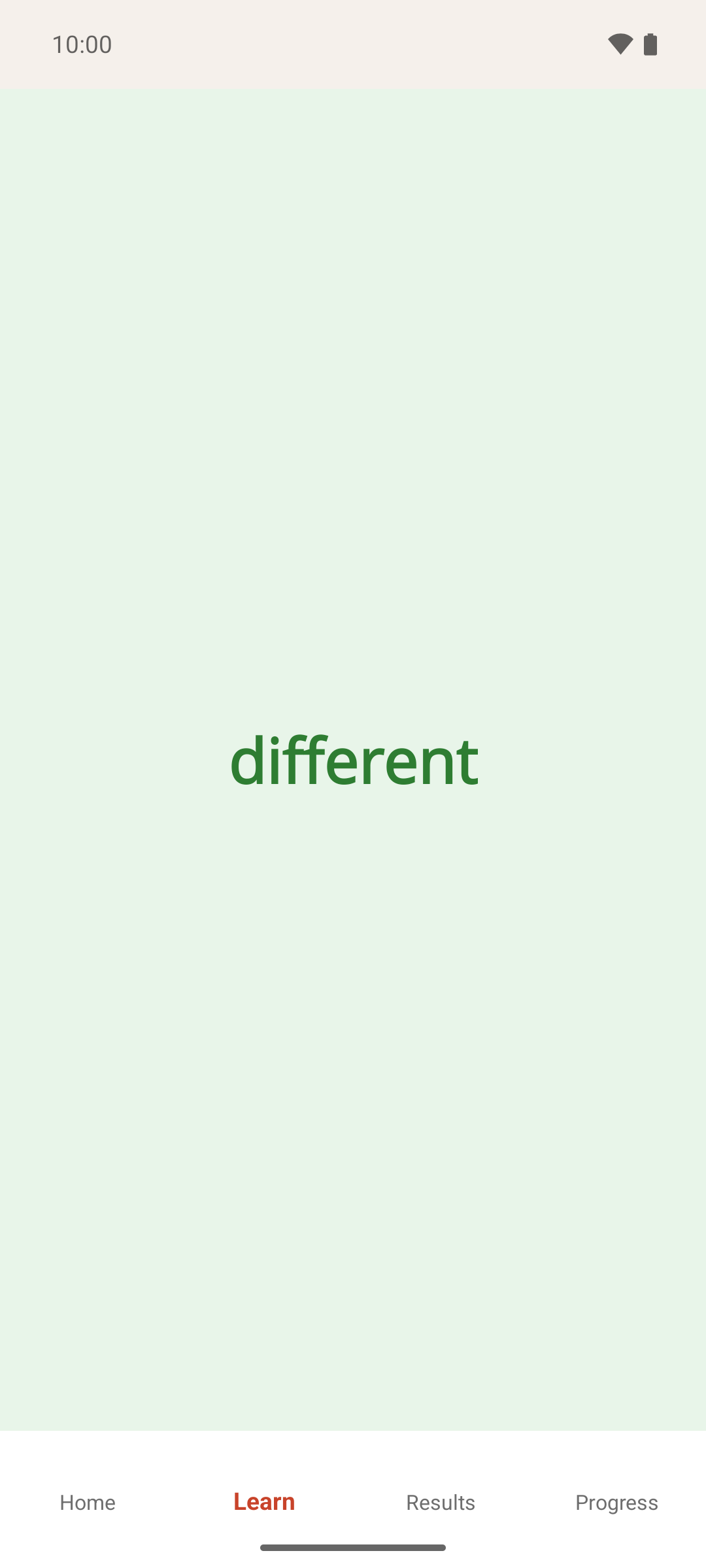
If you spelled the word correctly, the screen turns green and shows your answer for a second, then the next word is spoken.
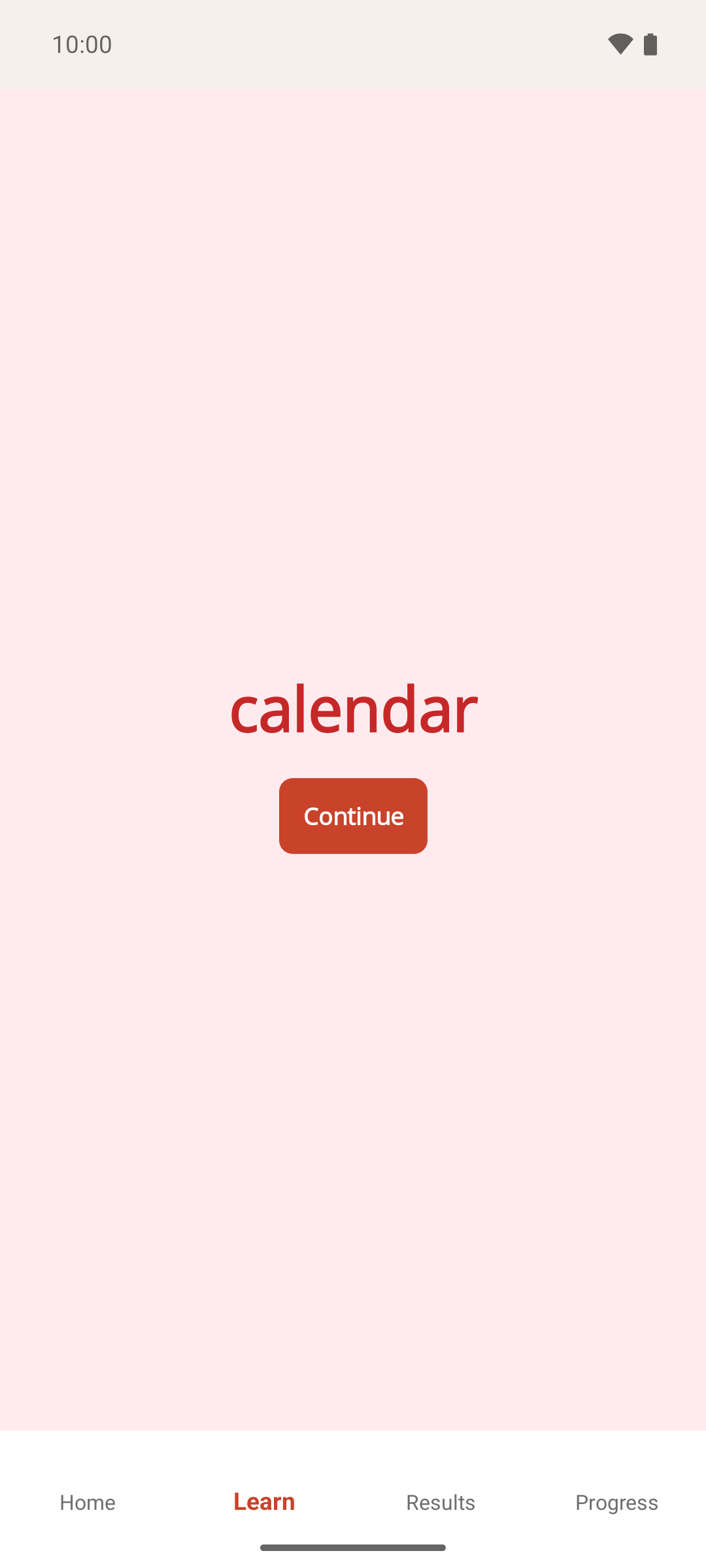
If you got it wrong, or the bar ran out, the screen turns red and shows the correct spelling. Read it, then tap Continue to move on to the next word.
Keep going. Each word gives you at least a few seconds, so there's no need to rush, but a quick correct answer earns a better grade than a slow one.
4. Finish the round and read your results
A practice round gives you 90 seconds of answering time. The app doesn't show this clock, but when it runs out the round ends after the word you're on, and the Results screen opens by itself.
At the top of Results are three numbers: the percentage you got Correct, your average answer time (Avg. time), and how many words were Incorrect. Below that, Words to focus on lists up to five words that need more practice. If none do yet, a message says so instead.
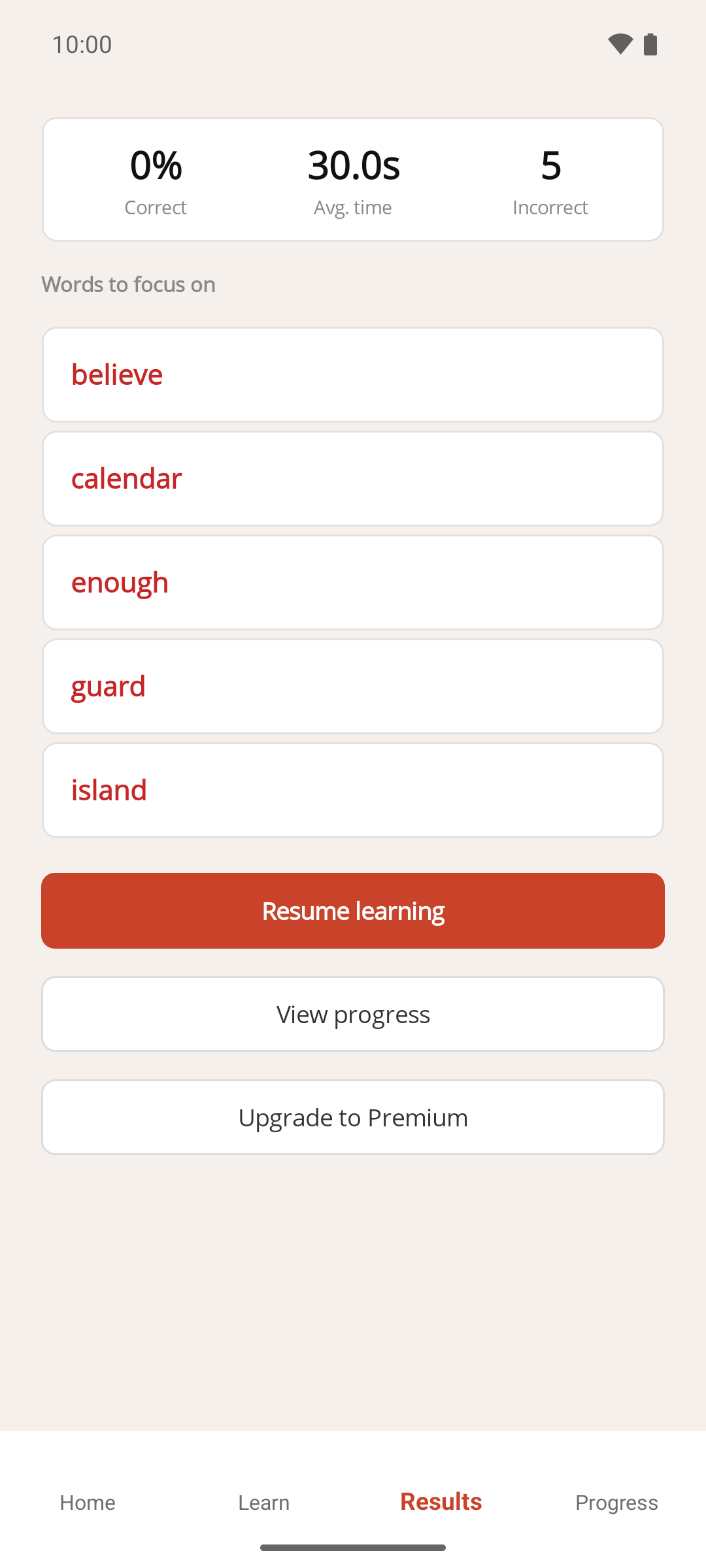
Tap View progress.
5. See how each word is graded
The Progress screen lists every word you're practising under a grade heading, from Very Good down to Unseen. Words you haven't been asked yet are Unseen. After one round, most of the words you answered will be Developing or Weak. That's normal: a word needs a few quick, correct answers before it can reach Good or Very Good.
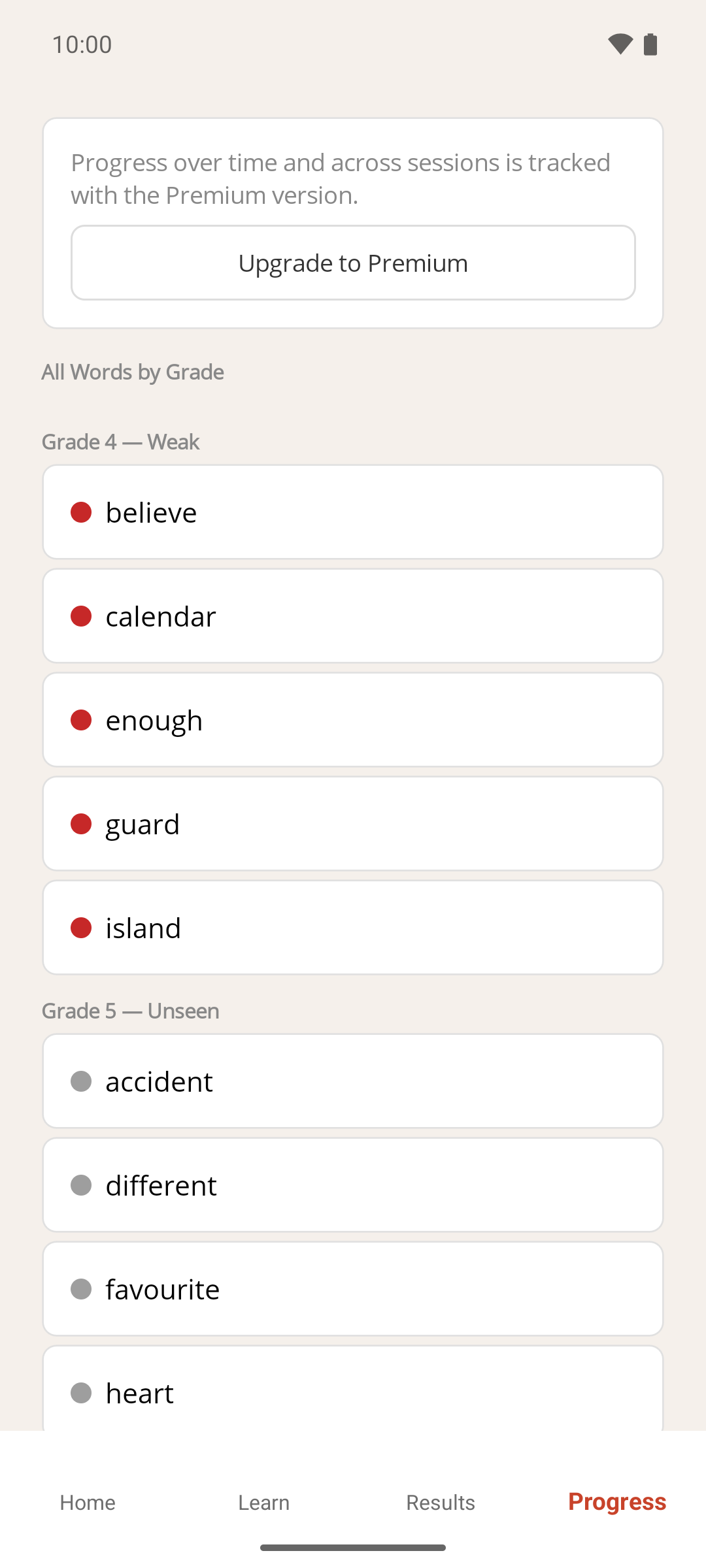
Tap the Home tab to go back to the start.
6. Add your own words
The built-in word group is a good way to try the app, but MemoLeap Spelling is built around practising the words you need. Follow How to create a word group to make a group, then How to add and edit words in a word group to fill it. Once a group has 10 words, it joins your practice rounds.
What's next
- How to start and complete a practice round for everything the Learn screen does
- How to use the on-screen spelling keyboard, including how to type accented letters
- Understand your word grades for what the grades mean and how they're worked out
- How practice sessions work, which explains why the free version's grades start fresh after a break of more than five minutes