How to change your sound, haptics and keyboard settings
Turn sound effects, key press sounds, vibration and the pause after an incorrect word on or off.
Before you start
- You have the MemoLeap Spelling app open.
Steps
- On the Home screen, tap Settings.
- Tap a switch to turn that setting on or off:
- Sound Effects — the tones played when you answer a word correctly or incorrectly.
- Key press sound — a click on every key you tap on the spelling keyboard. You only hear it while Sound Effects is also on.
- Haptic Feedback — a short vibration on every key press, and a longer one when you get a word wrong.
- Pause after incorrect word — when on, the correct spelling of a word you got wrong stays on screen until you tap Continue. When off, the app moves on by itself after two seconds.
- Tap the Home tab to return to the Home screen.
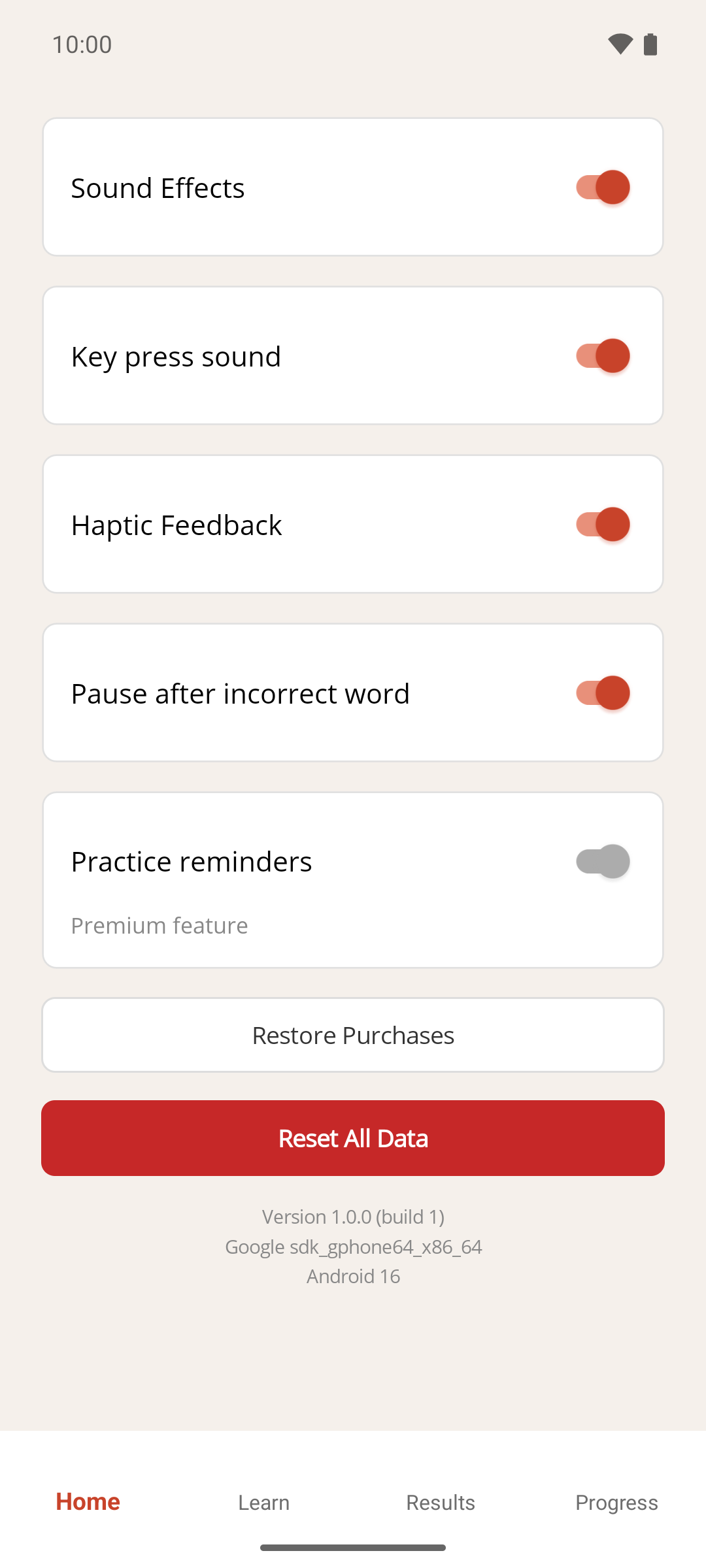
Result
Each change is saved as soon as you tap the switch and applies from your next word. All four settings are on when the app is first installed.
If something goes wrong
- Key press sound is on but I hear nothing. Check that Sound Effects is also on, and that your device isn't muted.
- Haptic Feedback is on but my device doesn't vibrate. Some devices, especially tablets, have no vibration motor, or have vibration turned off in the device's own settings.