How to read your results
See how you did in your most recent practice round.
Before you start
- You've completed at least one practice round — see How to start and complete a practice round.
Steps
- The Results screen opens by itself when a round ends. You can also tap the Results tab at any time to see your most recent round again.
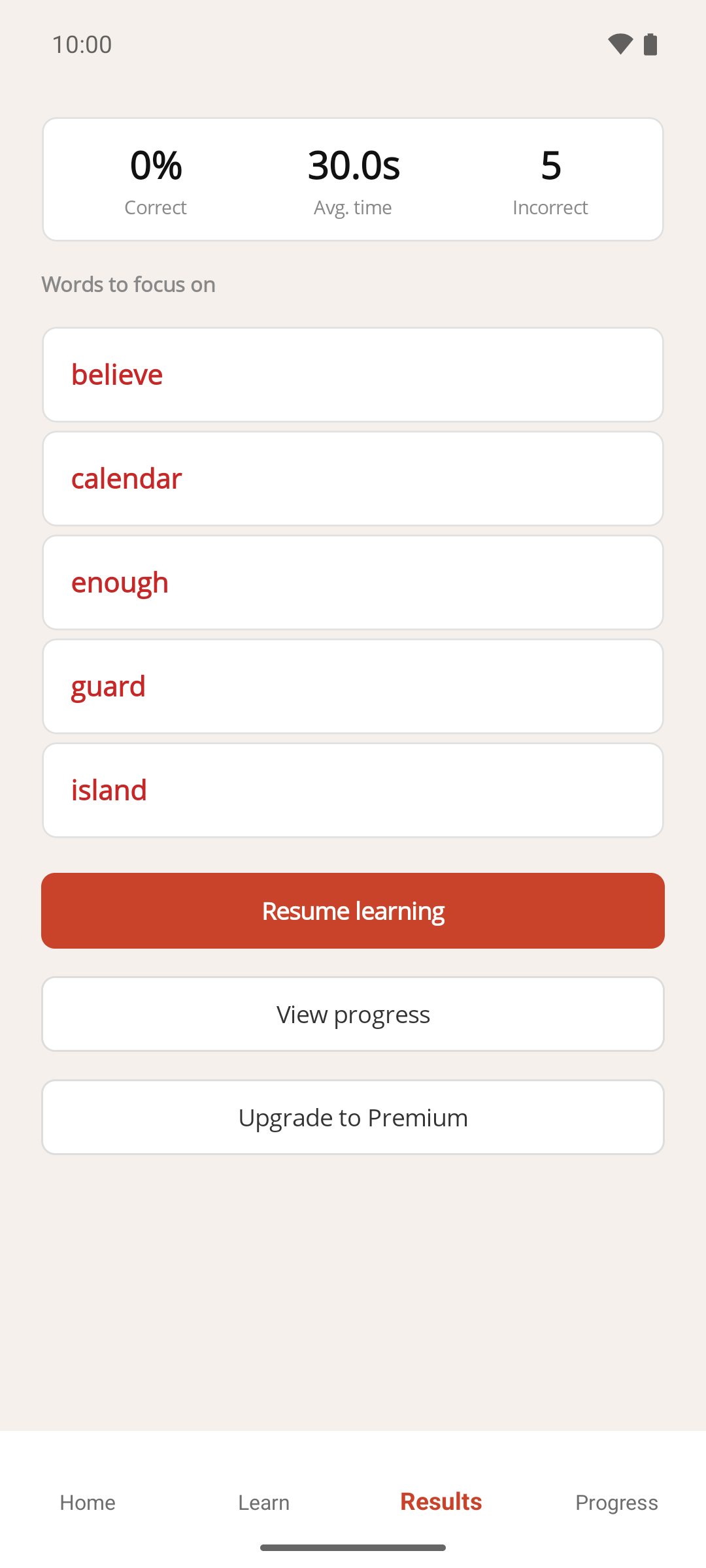
- Check the three numbers at the top:
- Correct — the percentage of words you got right in the round.
- Avg. time — your average answer time in seconds. A wrong answer counts as 30 seconds, so a few mistakes push this number up quickly.
- Incorrect — how many words you got wrong or ran out of time on.
- Look at the Words to focus on list below.
Result
Words to focus on lists up to five words that are currently graded Developing or Weak, weakest first. It draws on every word you're practising, not just the words that came up in this round, so it's a snapshot of what needs attention now. If no words are graded Developing or Weak, the message "No weak words right now — great work." appears instead.
From here, tap Resume learning to start another round, or View progress to see every word's grade.
If something goes wrong
- Results says a learning round must be completed first. There's no completed round to show. Tap Go Home and start one — see How to start and complete a practice round. On the free version this also happens after you've been away from the app for more than five minutes, because your results are cleared between sessions — see How practice sessions work.
- There's an Upgrade to Premium button at the bottom. This appears on the free version. It's a shortcut to the Premium screen — see How to upgrade to Premium.