How to restore your Premium purchase
Get your Premium purchase back after reinstalling the app or setting up a new device.
Before you start
- You're signed in to the same Apple or Google account you used to buy Premium originally.
- You have a network connection.
Steps
You can restore from either of two places. The Settings route is always available.
From Settings
- On the Home screen, tap Settings.
- Tap Restore Purchases.
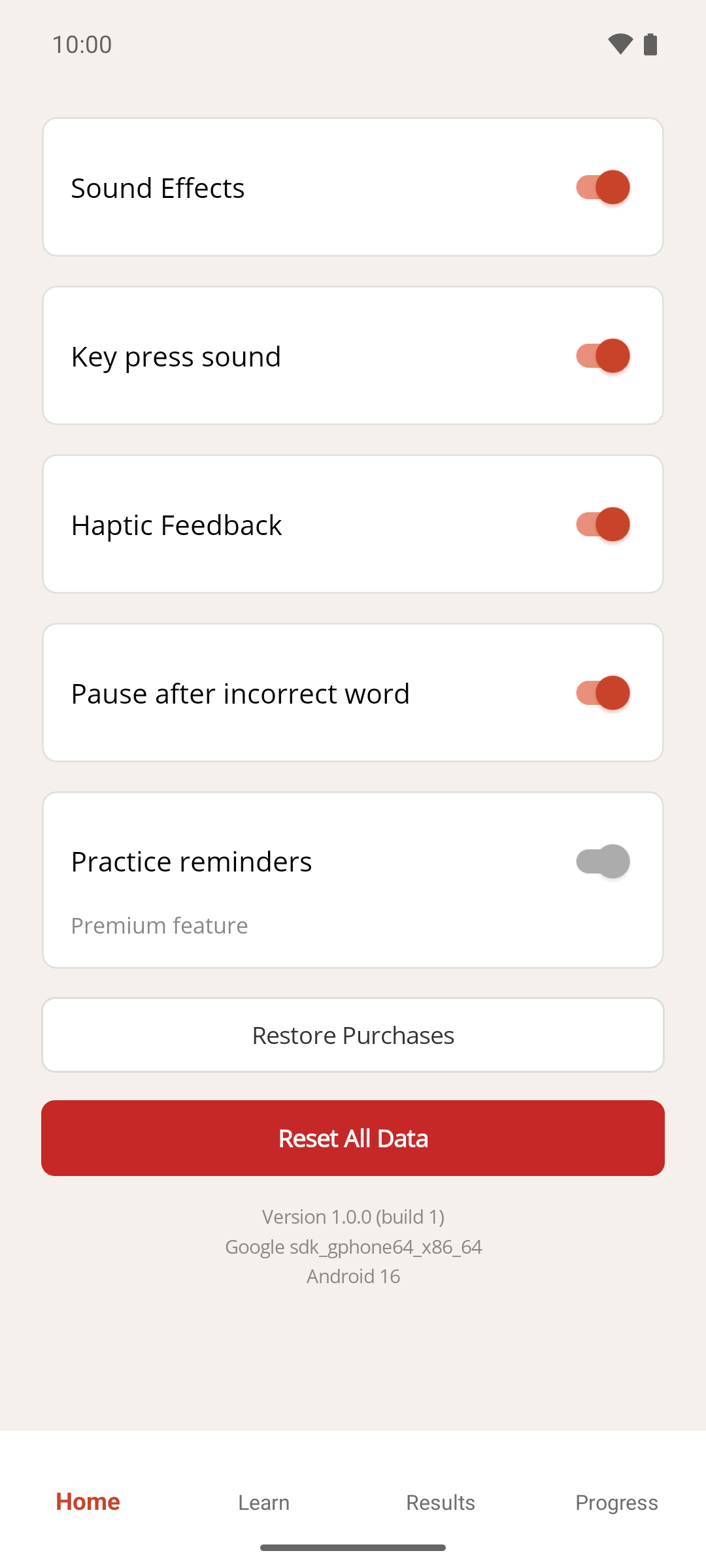
From the Premium screen
- Open the Premium screen — see How to upgrade to Premium for where the Upgrade to Premium button appears.
- Tap Restore Purchases, below the Upgrade to Premium button.
Result
The app checks your Apple or Google account for a previous purchase.
- If one is found, a message says Premium has been restored successfully, and Premium features are unlocked immediately. If you restored from the Premium screen, the app returns you to the screen you came from.
- If none is found, a message says no previous Premium purchase was found for your account.
If something goes wrong
- It says no purchase was found, but I did buy Premium. Check that you're signed in to the same Apple or Google account you used at the time of purchase, and that you have a network connection, then try again. See In-app purchases and restoring Premium for how purchases are tied to accounts.
- Premium was working and has disappeared. The app re-checks your purchase with the App Store or Google Play each time you open it. Try restoring as above.